
Creating and Managing Key Events
Key events refer to substantial events or changes in conditions that likely have an impact on the group’s overall efforts. Tracking Key Events helps you record significant events in the life of the initiative. It can be helpful to view these events in a line graph with a date range and look at associations between the events and increased or decreased rates of community changes or other accomplishments.
Note: Key events may affect the initiative either positively or negatively. For instance, completing an action plan may enable more activity, or receiving a grant may enable the group to hire staff who can take action. Or, key events, such as a loss of leadership, may result in a reduced level of accomplishment. Or, a tragedy in the community may mobilize people to take action for the cause.
Key Event Components
Section titled “Key Event Components”Key event entries are comprised of three components:
- Date of the event — This should be the date the event occurred and should be documented after the event has occurred.
- Title — Titles should briefly describe the nature of the event. These titles will display on the graph when key events are displayed.
- Description — Key event descriptions should include major details to understand the event, including how it relates to the work, how it might change the group’s work, and who was involved or affected by the event.
Examples of Key Events
Section titled “Examples of Key Events”- Resources, such as grant funding, received or lost
- A new partnership
- A loss or transition in leadership
- Hiring new or additional staff
- A tragedy in the community that mobilizes people around a cause
- Onset of a disaster or emergency (e.g., start of pandemic)

Creating Key Events Linked to an Accomplishment
Section titled “Creating Key Events Linked to an Accomplishment”-
Click Edit on an existing Accomplishment (under View Accomplishments), or create a new Accomplishment first and click Save.
-
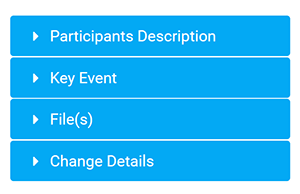
Click Key Event in the upper right of the Accomplishment.
-
Fill out appropriate fields. Event Date and Title will display on a graph, but also include a Description of the event.
-
Click Save to save the Key Event.
-
Click Save and Close to save changes to the Accomplishment.
Creating Standalone Key Events
Section titled “Creating Standalone Key Events”You can also create a Key Event without linking it to an Accomplishment:
-
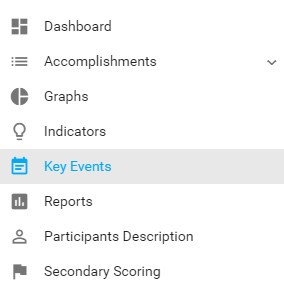
Click Key Events in the left navigation bar of your CCB.
-
Click + New at the top of the Key Events listing.
-
Fill out appropriate fields. Event Date and Title will display on a graph, but also include a Description of the event.
-
Click Save.
Exporting Key Events
Section titled “Exporting Key Events”- Click Key Events in the left navigation bar.
- Click the Export button.