
Importing Accomplishments
Admin Only: Only System Admins and Site Admins have the ability to import Accomplishments data into a CCB. The Import link will be grayed out for everyone else. If you wish to import new, revised, or additional data, please consult a Site Owner/Administrator or KU staff.
Video Tutorial
Section titled “Video Tutorial”Note: When importing new data, the imported data will become the Observer 1 entry, and Observer 2 and 3 entries will automatically be created from the import.
Important Notes Before You Begin
Section titled “Important Notes Before You Begin”- The import file must be an Excel document in the standard .xlsx format, not the older .xls format.
- You must import more than one row of data in your file, or you will receive an error message. If you have just one row, please enter it manually.
The Import Function
Section titled “The Import Function”The Import function is extremely useful. It allows you to work with larger amounts of your data in Excel, then import New Data, Revised Data, or Additional Data to an existing CCB.
The Evolution of Your Data
Section titled “The Evolution of Your Data”As your CCB form grows and develops, you may find you need to revise a response to a dropdown or multiselect question. Initiatives change over time, and there are a variety of reasons why you might need to update existing data in addition to updating the form itself.
Things to Know First
Section titled “Things to Know First”-
Adding a response to an existing question on a form requires no changes to historical data unless you want older entries to reflect this new response.
-
Removing a response from an existing question will affect historical data if that response was ever selected in prior entries. You have several options:
- Option 1: Update the form by removing the response but leave your historical data as-is. The older data will still be in the CCB, but you would only be able to view it, filter it, or graph it outside of the CCB system by exporting to Excel.
- Option 2: Update the form and update your historical data as well using the Export/Import functionality.
- Option 3: If there are enough revisions for a new cycle, clone the whole form and give it a new name (e.g., “Accomplishments 2024-2027”).
-
If you revise data and import it back, you should export all three Observers in the .csv file. The one exception is if you’re only updating the Code field for Observer 1 and not wanting to alter Secondary or Tertiary Scoring responses.
Prepare Your File
Section titled “Prepare Your File”- CCBs export data in .csv format. To import, save it first as an Excel document (.xlsx).
- Unless you are importing Code data specifically or brand new entries, include all three Observers (1, 2, and 3). If importing new entries, include Observer 1 only.
- Required fields for your import file:
- Initial fields: Observer (number), Date (of activity), Name (not required but recommended)
- System fields: MainID, DataID, CreatedOn, CreatedBy, ModifiedOn, ModifiedBy
- Aside from the required fields, include only the field(s) being modified. Delete all columns where the data is staying the same.
- Any blank fields/entries from an imported column will remove existing data.
- The Delete field (final column) is a system-command field for deleting multiple rows at once. Do not mix delete commands with other updates in the same import file.
- Make sure you have only one tab in your Excel file.
- Make sure you have no filters saved in your Excel file. If you have filters applied:
- Select all filtered data including the header row and copy it.
- Paste the copied data into a new tab, then delete the original tab.
- Save the document.
- Make sure you only have one header row at the top. Delete any second header rows if present.
- Close the file after you save it. You cannot import if it’s still open on your computer.
Import Your File
Section titled “Import Your File”-
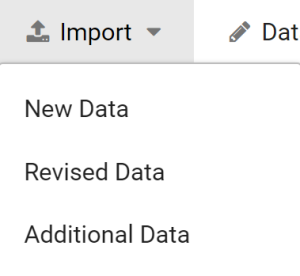
Select one of the three options in the dropdown menu (New Data, Revised Data, or Additional Data), and navigate to your prepared Excel document.
-
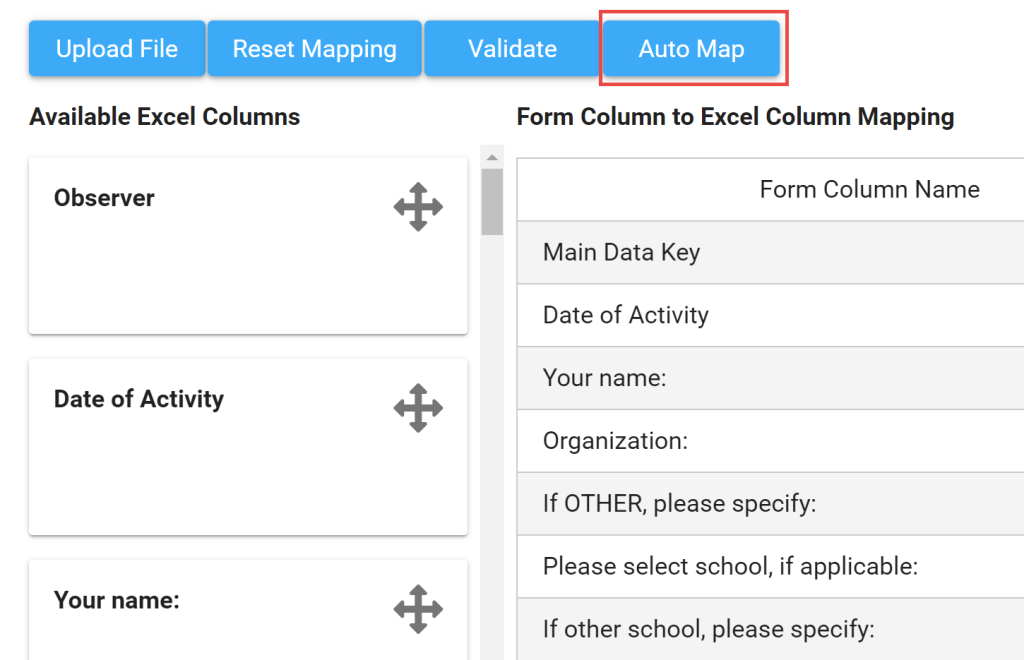
Wait for the Available Excel Columns to load.
-
Click the Auto Map button. The system should automatically map any text that matches exactly.
Note: The header row in your Excel document reflects the text from the “List Label” field when the question was set up, not necessarily the question Label that appears on the form.
-
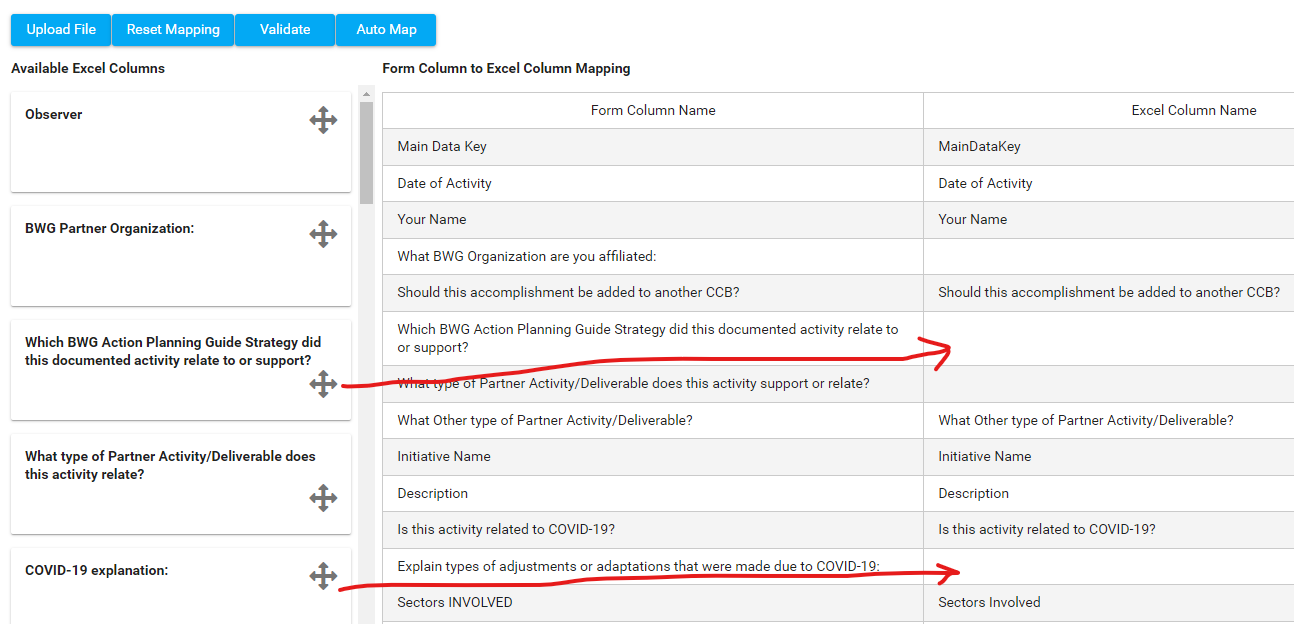
For any fields that don’t auto-map, click and drag the name from Available Excel Columns on the left to the matching empty field under Excel Column Name on the right.
NOTE: Be sure to get the arrow in the middle of the box to avoid moving options to the wrong line. If you move something to the wrong line, you will have to start over.
-
Continue until all fields have been mapped, with the following exceptions (system fields that will remain): Observer, DataID, Delete.
-
Click Validate. You will get a report document for downloading even if there are no errors.
-
If validated without errors, click Import. For short imports you’ll see a spinning circle; for longer imports, a status bar will show progress.
-
You will get an error recorded for all responses left blank (a “null” entry in the report). If you want to delete data in those fields, ignore errors and proceed.
-
Click Import. You will need to ignore errors first to proceed, even if there aren’t any listed.
-
You should get an Import Successful message once the process has finished.
Batch Delete
Section titled “Batch Delete”Batch Delete allows you to delete multiple entries from the CCB all at once.
- This function must be isolated — it can’t be combined with other updates in the same import document.
- You must delete all three Observers from each entry, or you will corrupt your data.
- Remove all extraneous fields other than the required fields from your document.
- Place a lowercase “y” in the Delete column next to each entry you want to remove, including all three Observer rows.
- Remove all other rows of data from your document that don’t have a “y” in the Delete column.
- Import your file. All entries with a “y” will be permanently removed from the CCB. This is irreversible.