
Intensity Scores
Admin Only: This feature is configured by Site Owners/Admins.
Video Tutorial
Section titled “Video Tutorial”Overview
Section titled “Overview”Intensity Scores provide you with a clearer, quantifiable indication for the “dose” of the intervention being delivered in the community. Higher intensity community policies and programs are associated with improved population-level outcomes.
Duration, Reach, Strategy, and Intensity Score fields must be created first, before the scores will calculate. The first three fields must be set as dropdown lists (not multiselects). If you do not see your Duration, Reach, and Strategy questions from your form in the Intensity Score Configuration menu, go back to those fields and change them to dropdowns.
We usually put the Intensity Score (calculation) field at the very bottom of an Accomplishment entry form. Once set up, users will not be able to enter data into that field because the Intensity Score is automatically calculated by the system once the entry is saved. You must create the destination field first as a numerical with decimals, then select it in the Intensity Score Configuration menu.
We also provide the option of including Goal and Target questions in the calculation. Each categorical variable is converted to a weighted number and then combined and averaged using an automated formula.
Results from the Intensity Score field are graphable.
Example of How Scoring Is Applied
Section titled “Example of How Scoring Is Applied”Duration
Section titled “Duration”| Response | Value |
|---|---|
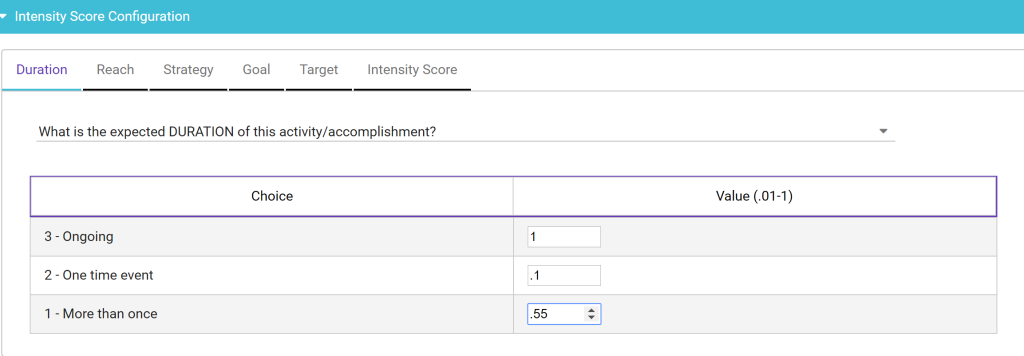
| One-time event | 0.1 |
| More than once | 0.55 |
| Ongoing | 1.0 |
| Response | Value |
|---|---|
| Low | 0.1 |
| Medium | 0.55 |
| High | 1.0 |
Strategy
Section titled “Strategy”| Response | Value |
|---|---|
| Providing information & enhancing skills | 0.1 |
| Enhancing services & support | 0.55 |
| Modifying consequences | 0.55 |
| Modifying access, opportunities & barriers | 1.0 |
| Modifying policies | 1.0 |
Formula
Section titled “Formula”Without Goal and Target: (Duration + Reach + Strategy) / 3
With Goal and Target: (Duration + Reach + Strategy + Goal + Target) / 5
Please talk to our research staff if you have questions about this scoring.
Creating Intensity Scores
Section titled “Creating Intensity Scores”-
In the Accomplishment Admin Form, click the Intensity Score Configuration bar to expand it.
-
Under the Duration tab, select the related question for duration from the dropdown. If you don’t see it, go back to that field and ensure it’s set up as a dropdown, not a multiselect.
-
The responses you have entered will display below the question. Add a numerical value to each response.
-
Click the tab for Reach and select the related question that tracks reach. Enter the numerical values.
-
Click Strategy and select the question that tracks strategy. Enter the numerical values.
-
If you wish to include Goal and Target (which is not common but possible), click on those tabs and add the values.
-
Click on the Intensity Score tab at the end of the row, and select the Intensity Score field you created for the destination of this auto-calculation.
-
Click Save.
An example of responses with suggested numerical values has been provided on the Excel document template for Accomplishments, which can be requested from our staff.