
Site Settings
Admin Only: The Administration Section of your CCB is only visible and can only be accessed by people assigned at the Site Admin (also known as Site Owner) level. Anyone assigned at the Contribute (also known as Member) level will not see this section.
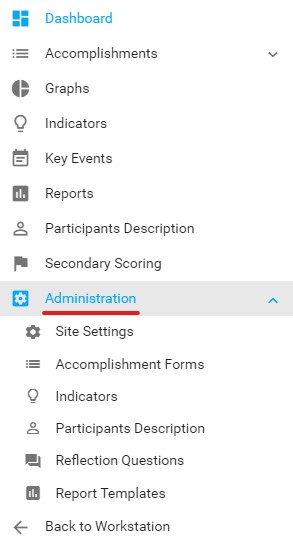
Our staff is happy to assist Site Admins with any administration features.
Site Settings
Section titled “Site Settings”This is where you select settings that apply to the entire CCB.
-
Default Form — Select the Accomplishments form that displays by default on your dashboard and under View Data.
Note: If you have more than one form within the same CCB, you can still select alternate forms to view and work with under the Accomplishments dropdown in your Left Navigation Bar. This setting merely establishes which form will load in initially, by default.
-
Default Code — Select a specific Code that will display in the three graphs at the top of the dashboard.
-
Default Code Display As — Change the Code name on the three dashboard graphs. Example: from “Community Change (CC)” to “Community Changes” (plural, to reflect more than one entry).
-
Site Theme — Select the preferred site color theme from an existing group of options.
-
Display Metrics — Select whether or not the three graphs will appear on your dashboard. We will sometimes turn this off for new sites that don’t have data yet, or CCBs that aren’t utilizing the Code field (which is rare but is an option).
-
Site Logo — A file picker for uploading your site logo (.jpg file format only). KU staff can assist with this, so that all logos are created to proper specifications for size (300 x 145) and image quality.