
Participants Description Analysis Reports
Video Tutorial
Section titled “Video Tutorial”Create and Export a Participant Description Analysis Report
Section titled “Create and Export a Participant Description Analysis Report”-
Follow steps 1-4 in the View Participants Description (PD) Data section to create or apply any desired filters, such as Date Range, etc.
-
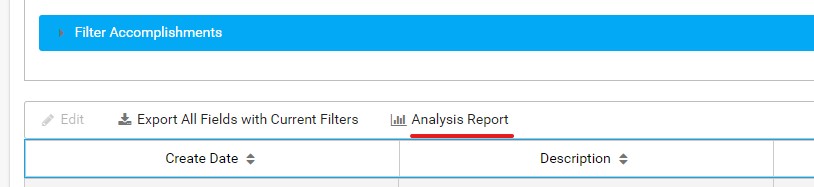
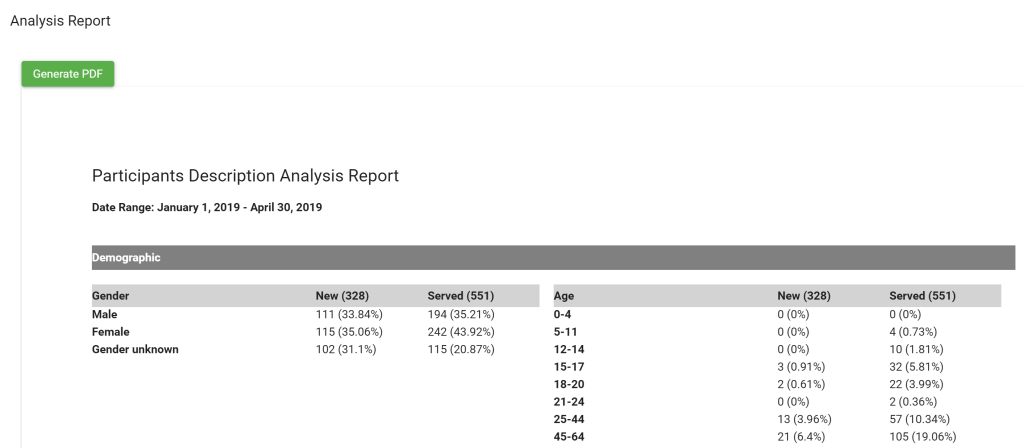
Click Analysis Report if you want to generate the Participants Description Analysis Report as a formatted PDF. The report data will display in a pop-up “preview” window with its own scroll bar.
-
Click Generate PDF if you want to download a full PDF version of the report you are viewing.
Convert to Excel
Section titled “Convert to Excel”You can convert the exported Participant Description Analysis Report (PDF) to an editable Excel document, using Adobe Acrobat Pro.
-
Open Adobe Acrobat Pro, then open your downloaded analysis report (PDF) in the program.
-
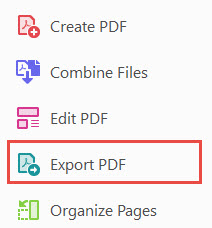
In the right column tool bar, select Export PDF.
-
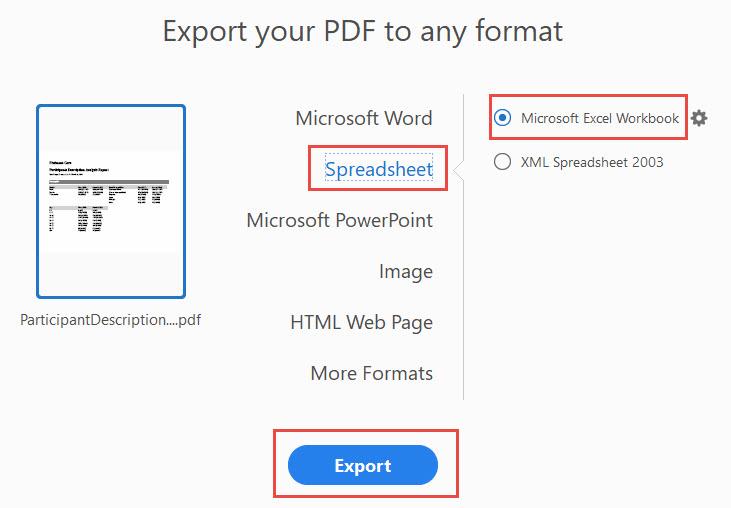
Select Spreadsheet on the left side options, and leave the default to Microsoft Excel Workbook.
-
Export your editable Excel file.