Secondary Scoring
Admin Only: Only Site Owners/Admins, select client staff, and KU staff can see the Secondary Scoring section. Go to Roles and Permissions and review all available access levels, including “Data Admin - Secondary Scoring” to understand your options.
Secondary Scoring Overview
Section titled “Secondary Scoring Overview”The Secondary Scoring feature is designed to serve as a user-friendly tool to assist with quality assurance and accuracy of data entry for Accomplishments. This feature includes:
- Entering secondary scores
- Calculating rates of inter-observer reliability
- Viewing coding discrepancies
- Providing comments and feedback on documented events
- Reflecting on next steps for improving inter-observer agreement
- Generating recommendations for improvement
- Sharing overall feedback with data entry personnel
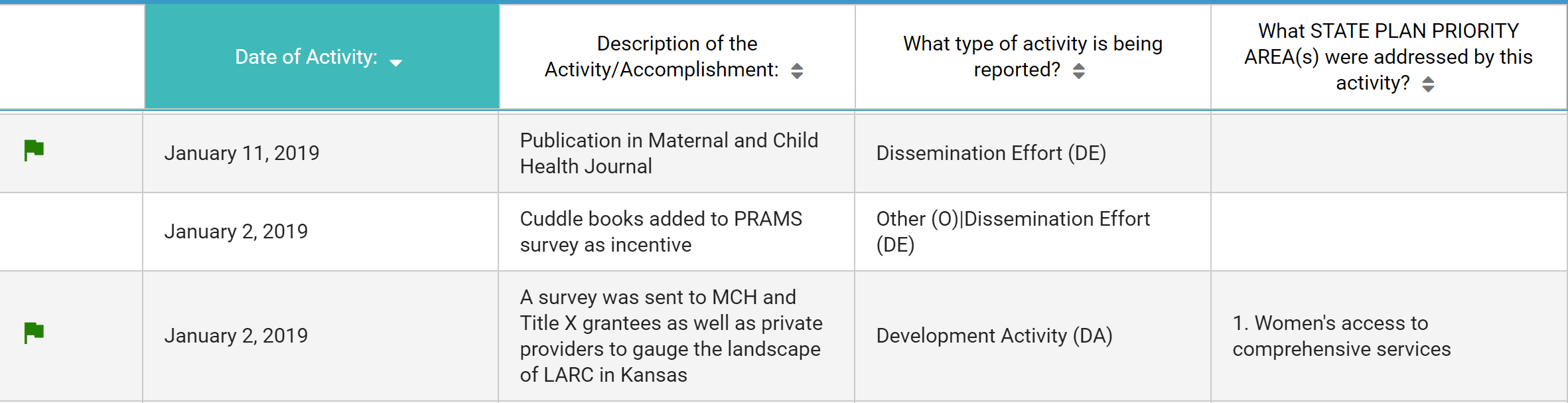
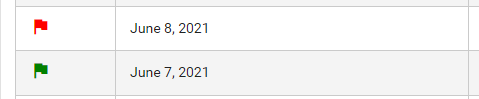
Customized scoresheets can be created for providing feedback on data (for example, on a monthly or quarterly basis). You set the parameters for which data you would like to review, and once the Secondary Scoring Sheets are created, you can save and resume your work at any time. Data entered in Secondary Scoring is synchronized with Accomplishments, so you have the option to display a green or red flag next to that entry in the Accomplishments listing.
Observer Terminology
Section titled “Observer Terminology”- Observer 1: The primary person entering data for an Accomplishment.
- Observer 2: The Secondary Scorer, aka the person scoring Observer 1’s entry.
- Observer 3: The Tertiary Scorer, aka the person who is scoring a scorer. Although not used as often, it provides an additional review process.
CCB Owners/Administrators assign visibility and access to Secondary Scoring for users based on their specific needs and responsibilities.
Secondary Scoring Flags
Section titled “Secondary Scoring Flags”- No Flag: Indicates the record has not yet been scored by Observer 2 or Observer 3.
- Green Flag: Indicates agreement on scoring by all Observers who have coded the entry.
- Yellow Flag: Indicates lack of agreement on scoring between Observer 2 and Observer 3.
- Red Flag: Indicates lack of agreement on scoring between Observer 1 and Observer 2.
Enabling the Secondary Scoring Feature
Section titled “Enabling the Secondary Scoring Feature”Secondary Scoring is an option available to all projects in the CCB. By default, this section is not displayed until it is determined that it will be used by a project.
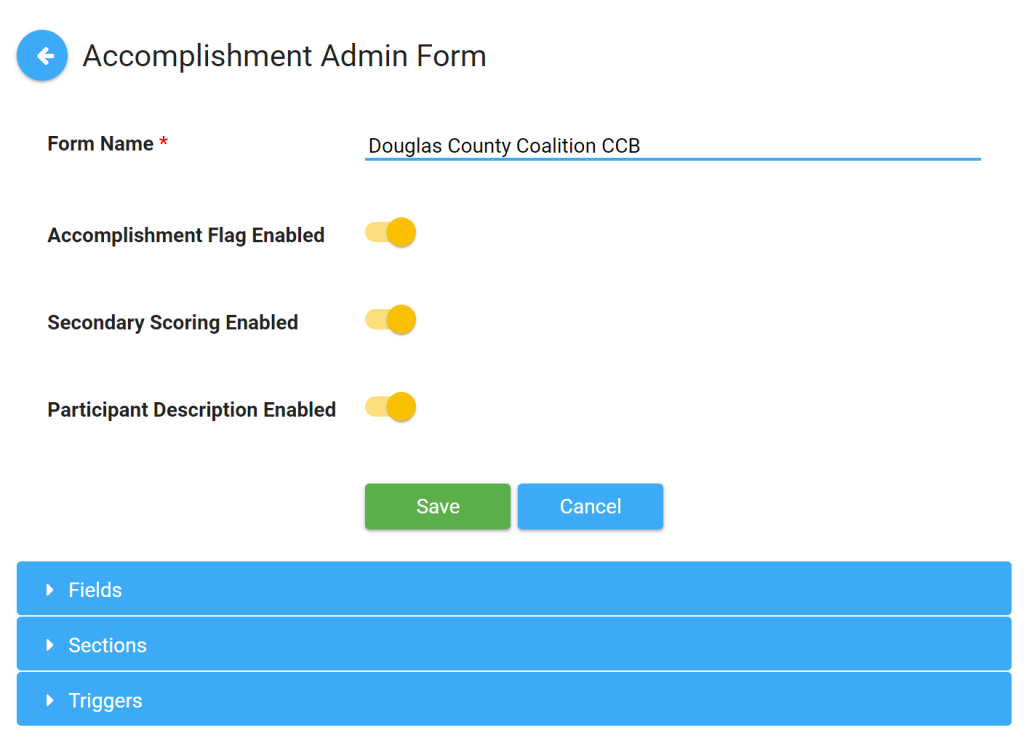
Before you can use Secondary Scoring, you must enable it for the specific CCB form you will score.
- Go to Administration.
- Select Accomplishment Forms.
- Click on the Form Name, and click Edit.
- To enable Secondary Scoring, slide the Secondary Scoring Enabled toggle to the right.
- If you want the Secondary Scoring Flags to appear on the Accomplishments listing, slide the Accomplishment Flag Enabled toggle to the right. It is possible to do Secondary Scoring without showing the flags.
Creating a New Scoresheet
Section titled “Creating a New Scoresheet”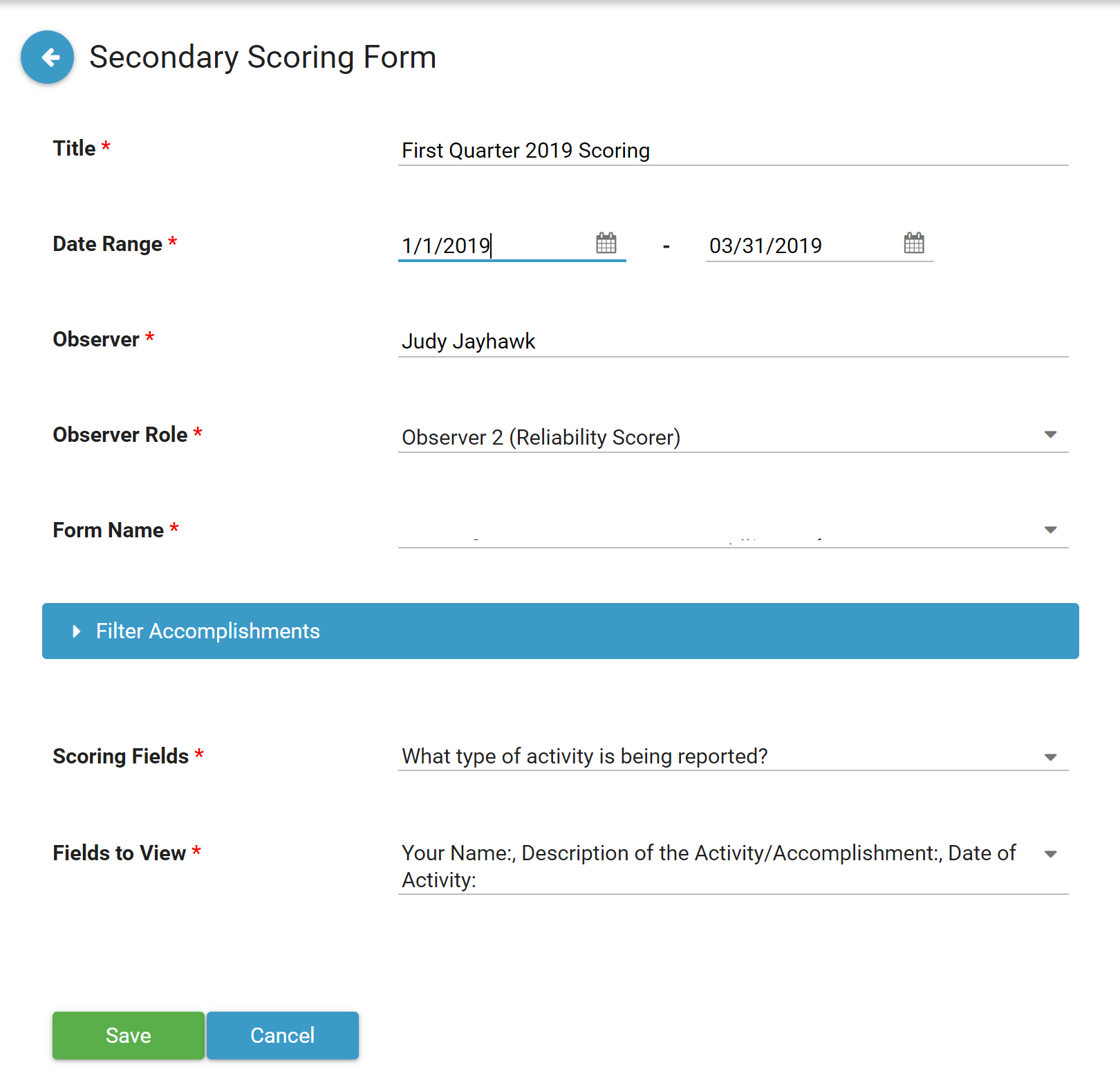
- Click New.
- Enter the Title for this specific scoresheet.
- Select the Date Range (monthly, quarterly, biannually, or annually). Enter the related start and stop dates.
- Type in your name as the Observer.
- Select your Observer Role (either 2 or 3).
- Select the Accomplishments Form Name from the list even if there is only one option. Two more fields will appear.
- Check the Scoring Field(s) you want to use. Normally, it’s the Code Field (sometimes referred to as “Activity Type”).
- Check all the Fields to View. These are the responses that will help you determine if the Code is correct. The Description Field is one of the best for this purpose.
Note: When you first click on Secondary Scoring, the only action link available is New. After you select a previously created scoresheet, the other options of Edit, Delete, Scoring, and Download will be active.
Scoring Accomplishments
Section titled “Scoring Accomplishments”-
Click once on the scoresheet you created, then click Scoring.
-
You will see a table with the columns you selected for scoring and viewing.
-
Review the viewing fields, then choose the correct option under the scoring column(s), which all have a 2 or 3 after the question, indicating your Observer role.
Note: There is a separate scroll bar for the scoresheet.
-
You may add a comment in the Inter Observer Comment field for any entry. Comments can provide encouragement or instructions for improving coding decisions.
-
Continue until you have all the entries scored.
-
If you have an overall comment, add it in the Overall Comments field at the bottom.
-
Click Save when you are finished.
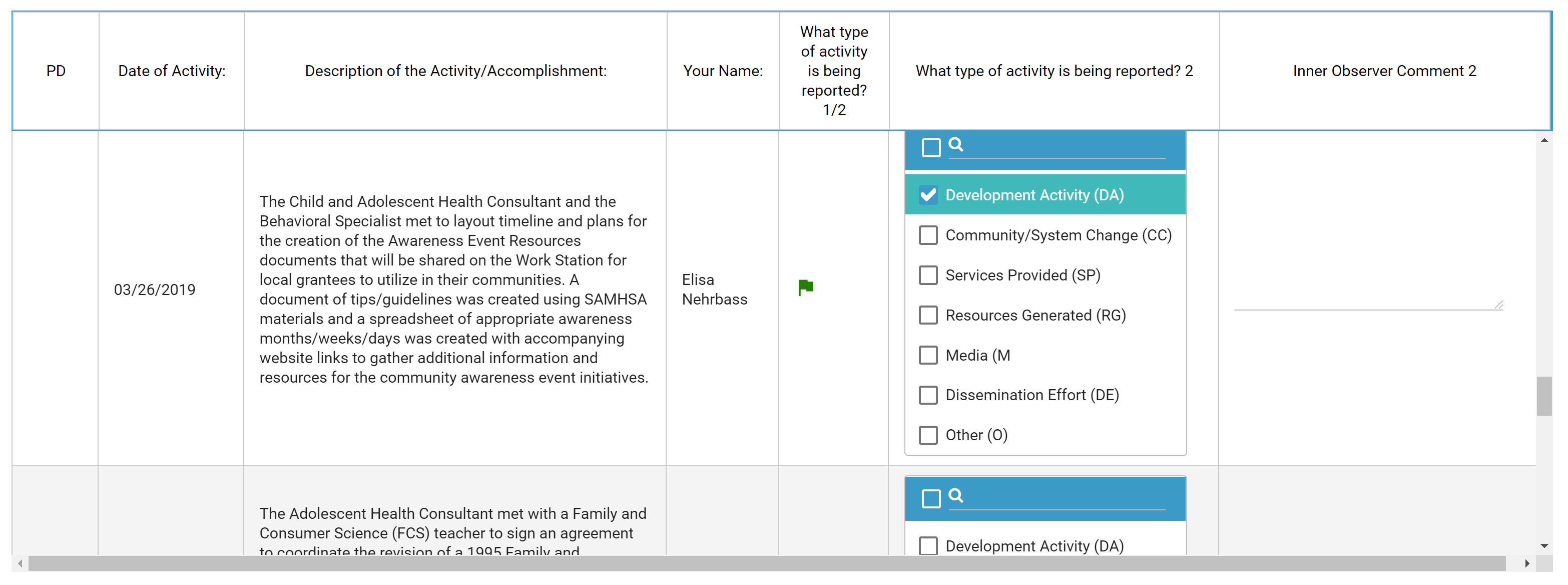
(Click the image above to open it full-sized in a new window.)
Generating a Report
Section titled “Generating a Report”Once you have completed a scoresheet, you can generate a report to reflect on the results and share with users documenting entries.
- Select the scoresheet you want to download by clicking on it once.
- Click Download.
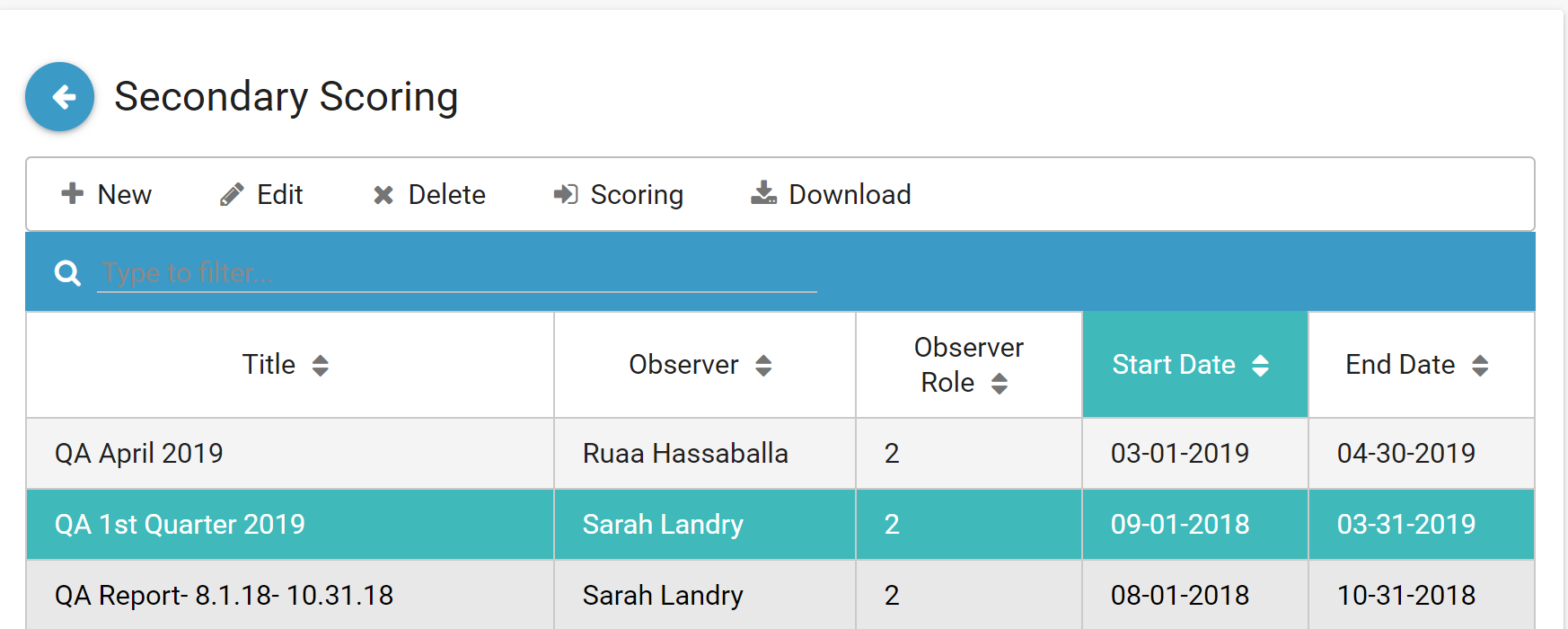
The Secondary Scoring Report consists of:
Cover Page
Section titled “Cover Page”The Cover Page serves as a quick reference to the overall outcome. It features the scoresheet’s Title, Observer Name, Date Range, Number of Entries, and % Agreement between Observers 1 and 2.
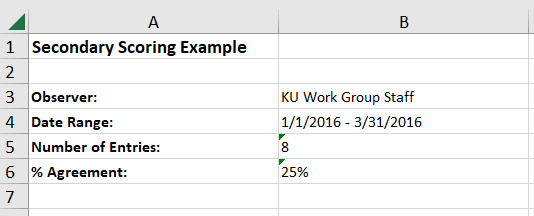
Score Sheet Data
Section titled “Score Sheet Data”A spreadsheet of the data located in the second tab of the Excel document.
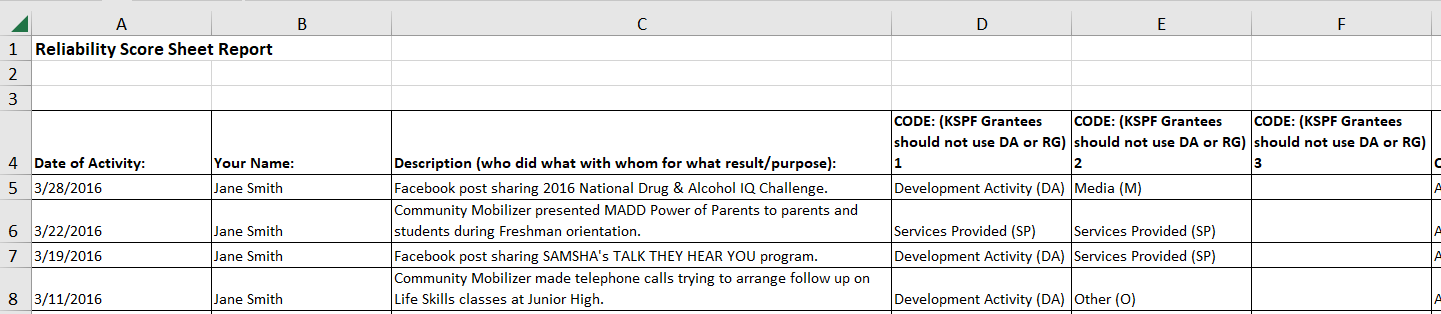
(Click the image above to open it full-sized in a new tab.)
Agreement Summary
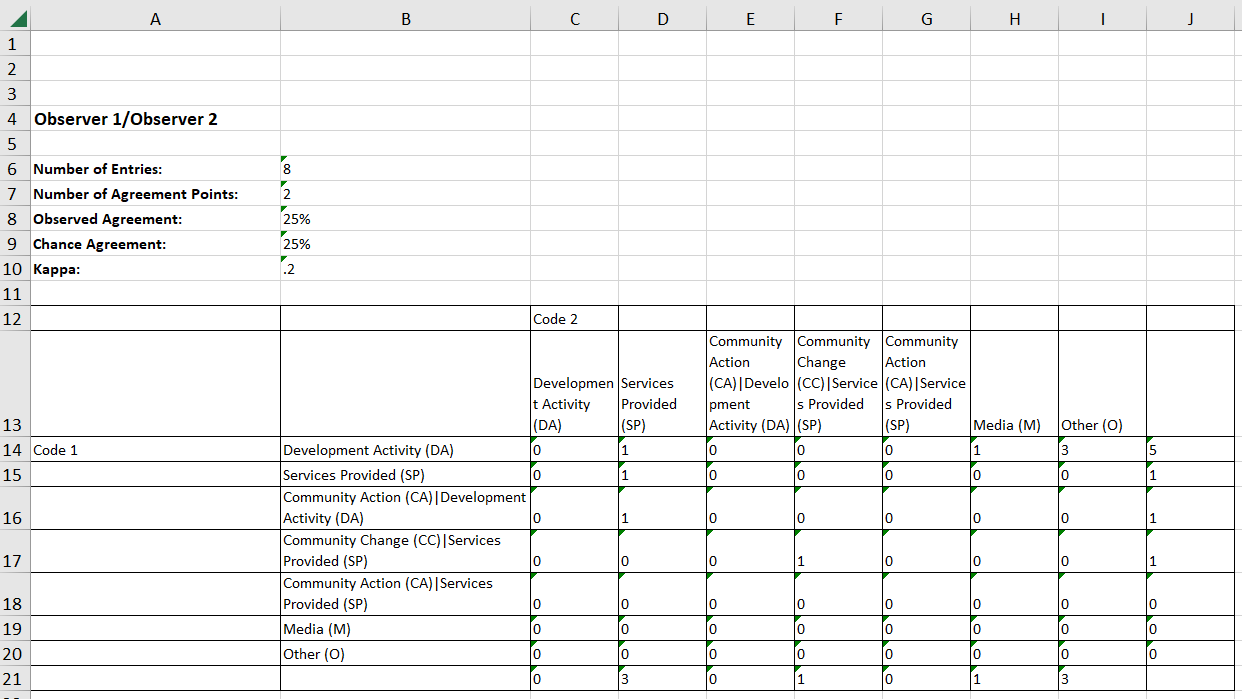
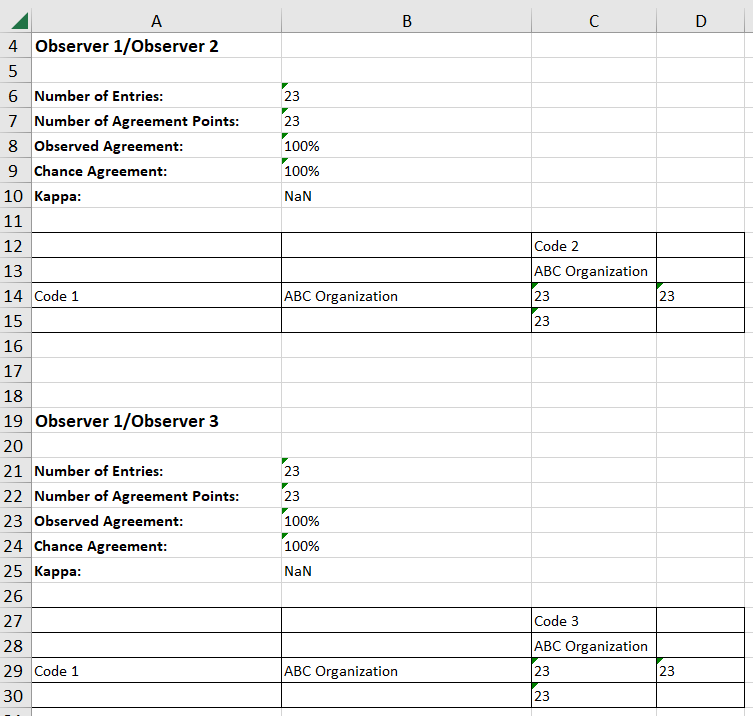
Section titled “Agreement Summary”The Agreement Summaries 1 and 2 (tabs 3 and 4) display the inter-reliability report including:
- Number of entries
- Number of agreement points
- Observed Agreement
- Chance Agreement
- Kappa
Viewing the Accomplishments Scores
Section titled “Viewing the Accomplishments Scores”If scoring has been completed for an entry, and if flags are enabled, a colored flag (green, yellow, or red) will appear in the View Data section under Accomplishments.
- Go to the CCB Dashboard.
- Click View Data.