
Logging In
Please click on the link relating to the help you need or the problem you are experiencing. If you can’t find the information you need here, please contact us at toolbox@ku.edu or 785-864-0533.
I Need to Set Up a New Microsoft Login
Section titled “I Need to Set Up a New Microsoft Login”Please refer to the Microsoft Login Setup page for details.
I Have a Microsoft Login — How Do I Log In?
Section titled “I Have a Microsoft Login — How Do I Log In?”If you, or your organization, already has Microsoft login accounts:
- Go to MyCTB.org.
- Click on the appropriate Site Collection button.
- Tip: Start typing in the site name in the Quick Search and it will display the site you want.
- Enter the email associated with your Microsoft account (e.g., myname@somewhere.org).
- After that, you may be automatically redirected to your organization login page.
- If you are not redirected, enter your organization password.
- If you are redirected to your organization login page:
- Enter your organization username, which may be different than your email.
- Enter your organization password.
- Click the button to login.
- You should be redirected to MyCTB.org and have access to your CCB Site(s) or Site Collection(s).
I’m Having a Problem Creating a Microsoft Login Account
Section titled “I’m Having a Problem Creating a Microsoft Login Account”A Microsoft account will link to an email address, and it’s free (no cost) to create one. Any personal email will do. Gmail will work. Outlook or Hotmail already have Microsoft accounts generated. If you have Microsoft 365 with the email address you’re using, you already have a Microsoft account. Most work/organizational emails will do, as long as you have permission to create a Microsoft account. If you have Microsoft 365 (formerly Office 365) through your work/organization, you have a Microsoft account. Should you receive the error message “You can’t sign up here with a work or school email address,” please refer to the Troubleshooting section.
I Don’t Know How to Clear My Browser Cache
Section titled “I Don’t Know How to Clear My Browser Cache”Sometimes a CCB error will not resolve itself until you clear the cache in your browser. Please follow these instructions to clear cache in Chrome, Edge, Firefox, and Safari.
Note: We will never ask you to clear your stored passwords! Please make sure that box isn’t checked.
In Chrome
Section titled “In Chrome”-
On your computer, open Chrome.
-
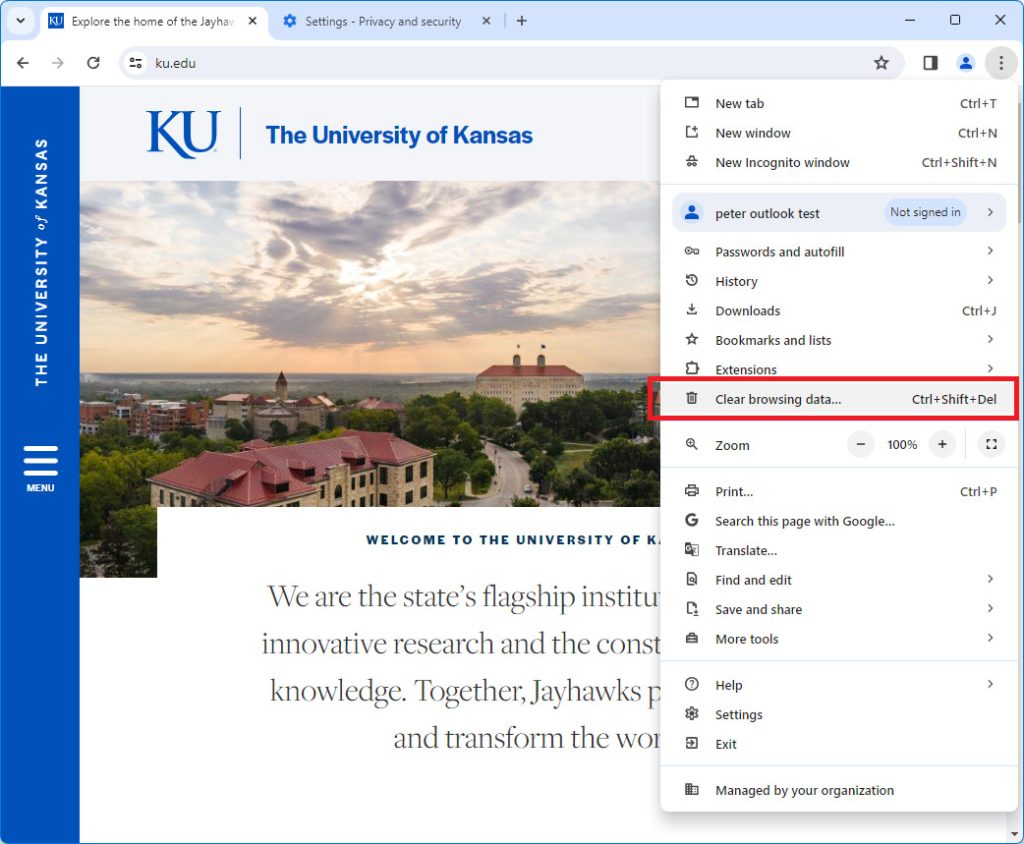
At the top-right corner of the page, click the vertical ellipsis.
-
Click Clear browsing data.
-
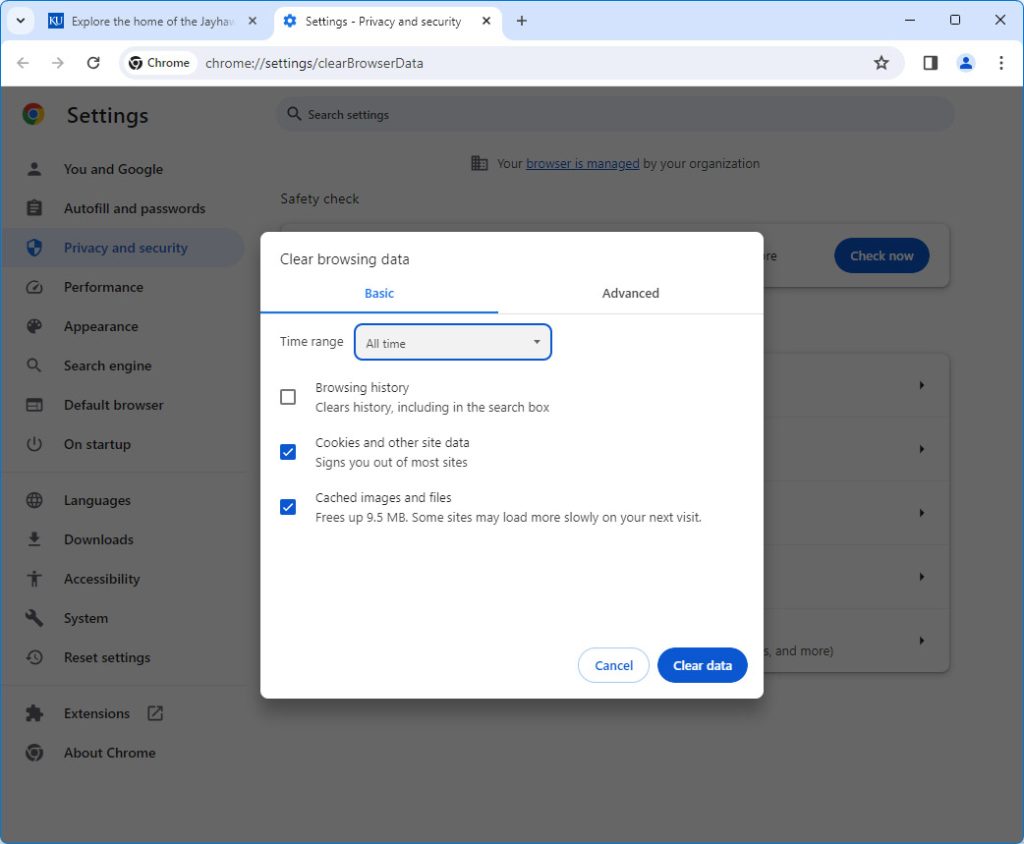
Make sure the Time Range is set to All Time, not Last Hour.
-
Next to “Cookies and other site data” and “Cached images and files,” check the boxes. Do not clear your passwords or autofill form data. It’s also unnecessary to clear Download History or Browsing History, but you can if you want.
-
Click Clear data. Once you have established these settings for clearing cache, it shouldn’t be necessary for you to customize them again.
In Microsoft Edge
Section titled “In Microsoft Edge”Please refer to the instructions from Microsoft here.
In Safari (for Mac)
Section titled “In Safari (for Mac)”Please refer to Apple’s instructions here.
In Firefox
Section titled “In Firefox”Please refer to Mozilla’s instructions here.
For common error messages and their solutions, see Login Issues.