
Login Issues
If you’re having trouble logging into your CCB, find the error message below that matches what you’re seeing.
”Account not registered with target site collection”
Section titled “”Account not registered with target site collection””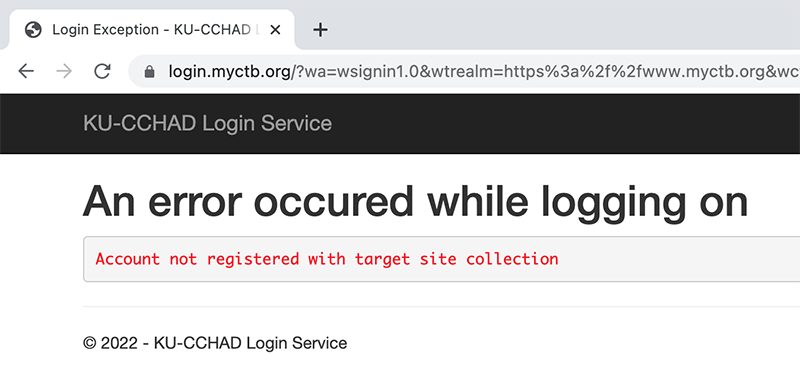
There are two primary reasons why you would see this error message:
You are logged in with a different Microsoft account
Section titled “You are logged in with a different Microsoft account”Many people have more than one Microsoft account (work, personal, etc.). When you try to log into your CCB, Microsoft will automatically sign you in with whichever Microsoft account you used last, bypassing their popup that allows you to enter the correct email.
Solution: Clear your browser cache first. Full instructions for clearing cache can be found on the Logging In page. Reminder: Make sure the Time Range is set to “All Time,” not “Last Hour.” After clearing cache, you should get the login popup when you try again, allowing you to enter the proper email address associated with your CCB.
The email address you are using is not registered in our system
Section titled “The email address you are using is not registered in our system”If you’re using a different email address than the one you provided to us, you will not be able to sign in. The email must match exactly. If your email has changed, please contact us at toolbox@ku.edu or (785) 864-0533.
”Need admin approval”
Section titled “”Need admin approval””Users in organizations that have Microsoft 365 may see the “CTB WorkStations needs permissions to access resources in your organization that only an admin can grant” error.
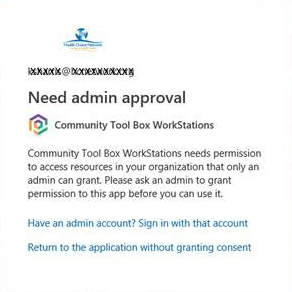
We will need to allow system access to your organization’s Microsoft 365 administrator.
Steps to Grant Access
Section titled “Steps to Grant Access”- Send us the email address of your Microsoft 365 administrator so we can allow that person access to our system.
- After the access has been granted by us, we will provide the myctb.org URL to your Microsoft 365 admin.
- We’ll ask your admin to login to the site.
- Once the “grant access” permissions page is displayed, we’ll ask the Microsoft 365 admin to sign in and accept.
- After this is done, all users in your organization who have accounts in our system should be able to login without error.
”You can’t sign up here with a work or school email address”
Section titled “”You can’t sign up here with a work or school email address””It says “You can’t sign up with a work or school email address,” but it doesn’t tell you why. Frequently, it is because you already have a Microsoft login. For example, if you have access to Microsoft 365, you already have a Microsoft login. Please follow the instructions on the Logging In page if your organization already has Microsoft login accounts.
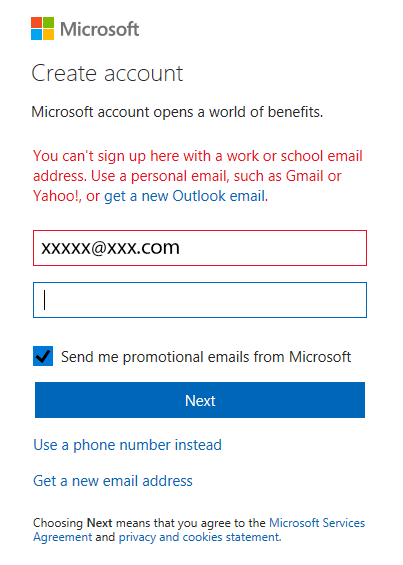
If you get this error and don’t have Microsoft 365 associated with your CCB email address, you must link a (free) Microsoft account to another email address of your choosing. All CCB logins must be authenticated through Microsoft accounts.
”Which Microsoft account do you want to use?”
Section titled “”Which Microsoft account do you want to use?””This error is less prevalent now, since Microsoft started auto-signing people in. It will show up on occasion, particularly with older or outdated browsers.
If you see this screen, it means you have used more than one Microsoft login on your computer. Click on the option that is most appropriate. You should only need to do this once.
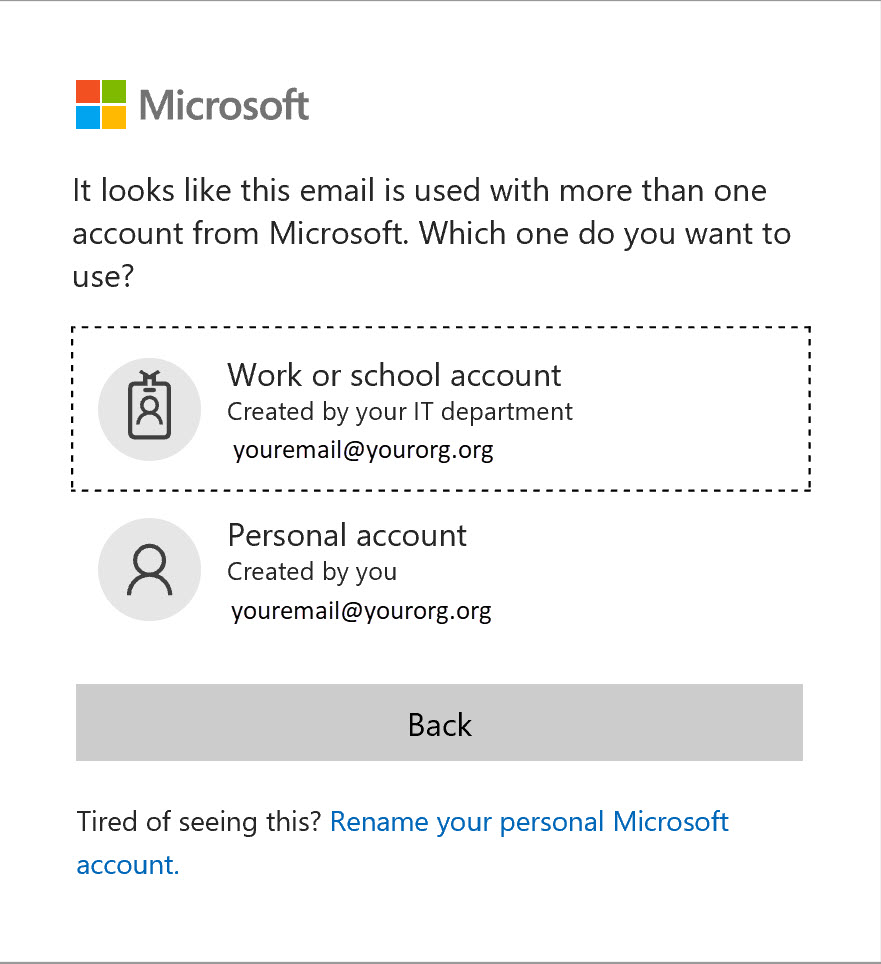
Select:
- “Work or school” account if your Microsoft login was created by your IT department.
- “Personal” account if you created your Microsoft login yourself.
Note: There are exceptions. If you click “Work or school” and it’s unsuccessful, clear your cache and try again. This time, select “Personal,” even with your work or school email. That often works.
”An error occurred while logging on”
Section titled “”An error occurred while logging on””“The action ‘EMPTY’” error is typically caused by using an old bookmark or link. Please follow the instructions for clearing your browser cache on the Logging In page, then try again. Reminder: make sure the Time Range is set to “All Time,” not “Last Hour.”

If you get “An error occurred while logging on” but the second line says something other than “The action ‘EMPTY,’” please contact us at toolbox@ku.edu or (785) 864-0533 so we can help resolve the problem.
Still Need Help?
Section titled “Still Need Help?”If you can’t find the information you need here, please contact us at toolbox@ku.edu or 785-864-0533.